A client rings you on a Monday morning to say their service pages have vanished from Google search. Before you open anything else, you open Google Search Console, formerly known as Google Webmaster Tools. GSC is the most direct line of communication between a website and Google’s crawlers, and the URL Inspection tool’s “Test Live URL” function, along with the Page Indexing report, can quickly reveal whether the problem is a crawling block, an indexing error, or something else entirely. If you still see the old name “Webmaster Tools” in tutorials online, do not worry: it is the same product, simply rebranded by Google some years ago. The core functionality has only grown since then.
What follows covers the full agency workflow for using webmaster tools Google Search Console: setting up client properties correctly, submitting and monitoring sitemaps, interpreting the reports that actually move the needle, and confirming fixes before you tell a client the issue is resolved. At the end, we will look at how agencies can take raw GSC data and combine it with GA4 and Google Ads to produce reports that tell a complete story, not just a list of indexing statuses.
The setup step is where most agencies make a small but consequential decision: which property type to add. GSC offers two options. A Domain property covers every subdomain, protocol, and path under a root domain, so a single property captures http://, https://, www, and non-www versions simultaneously. A URL-prefix property covers only the exact URL you enter, which means a separate property is needed for each variation. For client sites, the Domain property is almost always the right choice. It requires DNS verification, a small overhead, but gives you complete, unfragmented data from day one.
For verification, the DNS TXT record is the most robust method because it does not depend on anything installed on the website itself. If the agency manages the client’s domain DNS, you can drop the record in and verify within minutes. If the client’s Google Tag Manager container is already published and live on the site, GTM verification is a fast alternative: add a URL-prefix property, choose the GTM option, confirm the container is published, and you are done. HTML file upload and HTML meta tag are both reliable but require server or CMS access, which not every agency arrangement includes.
Google Analytics verification works when the tracking code on the site belongs to the same Google account being used to verify, but this can get complicated when the client owns the Analytics property and the agency is using a separate account. Weigh up which method suits your access arrangement before starting.
Once the property is verified, managing access correctly protects both the client and the agency. The client should retain Owner-level access to their own property. Agency team members who need to submit sitemaps, request indexing, and investigate issues should be added as Full users through Settings > Users and permissions. Restricted user access is appropriate for team members who only need to pull reporting data. Each person gets added with their individual Google account, so no passwords change hands, and the client can remove access instantly if the relationship ends.
Submitting a sitemap is straightforward: navigate to Indexing > Sitemaps, paste the sitemap path (usually sitemap.xml or sitemap_index.xml), and click Submit. Before you do, confirm the sitemap URL is publicly accessible and that no robots.txt rule is blocking Googlebot from fetching it. Many popular CMS platforms and plugins generate sitemaps automatically, check your platform’s documentation to confirm the default sitemap path and ensure it is enabled before submitting.
After submission, the Sitemaps report shows three statuses worth understanding. Success means Google fetched the file without errors. Couldn’t fetch means the sitemap URL returned an error or was blocked, which usually points to a hosting issue or a robots.txt conflict. Has errors means the file was retrieved but contains parsing problems or invalid URLs.
Beyond the fetch status, watch the submitted versus indexed URL count. A submitted count of 200 and an indexed count of 60 is not automatically a crisis, but a large gap warrants investigation. It often points to duplicate content, thin pages, or canonicalisation problems that are preventing Google from selecting those URLs as the preferred version to index. Consult the Page Indexing report alongside the Sitemaps report to identify which specific issues apply.
Timing is worth addressing with clients early. Google typically fetches a submitted sitemap within a few hours, though this can vary. Crawling and indexing the individual URLs can take several days to a few weeks, depending on site size, authority, and crawl budget. Submitting a sitemap tells Google where to look; it does not override Google’s own quality and relevance decisions about what to index.
The Performance report is where you find the keyword opportunities that clients cannot see from their Analytics data alone. Open it, enable all four metrics (clicks, impressions, CTR, and average position), and start with the Queries tab sorted by impressions. High-impression, low-CTR queries are your first target: Google is already showing the client’s pages for those searches, but users are not clicking. That signals a title or meta description problem, or a mismatch between the page’s apparent topic and what searchers actually want.
Striking-distance keywords, those ranking between positions 8 and 20, are your second priority. These pages are close to page one and often need content improvements, better internal linking, or stronger topical coverage rather than a complete rebuild. Switching to the Pages tab lets you cross-reference performance at the URL level. Select a specific page, return to the Queries tab, and see every keyword it ranks for. This is how you catch cannibalisation: two pages competing for the same queries, each diluting the other’s ranking signal.
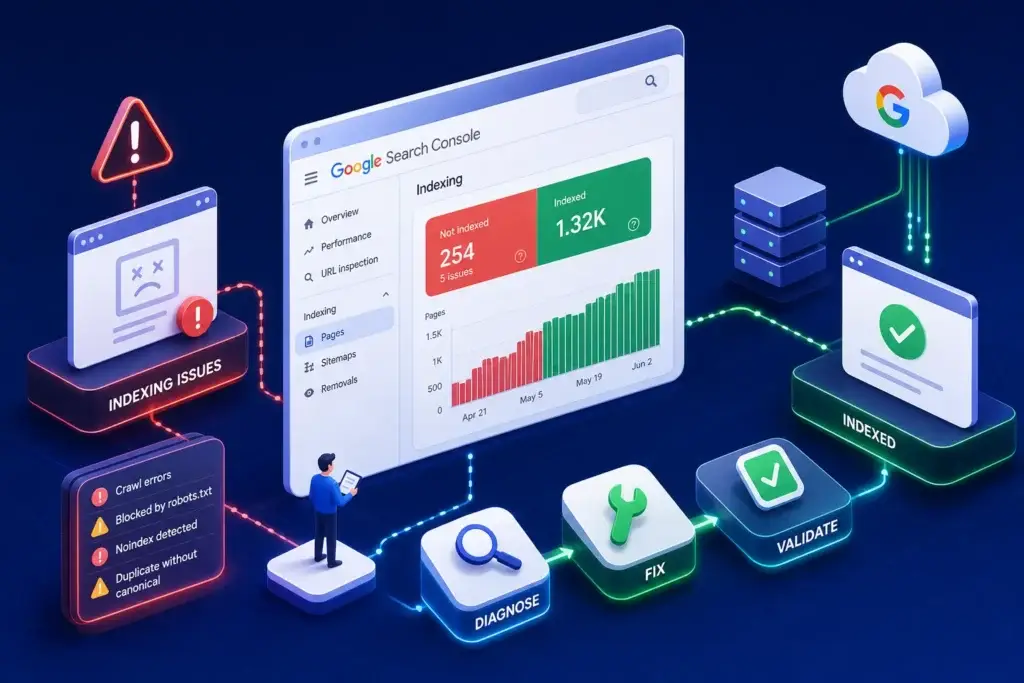
The Page Indexing report organises your site’s URLs into four buckets: Error, Valid with Warnings, Valid, and Excluded. Excluded pages are not automatically a problem, redirects, intentional noindex pages, and login-protected content all belong there. The statuses that demand immediate attention are server errors (5xx), unintentional noindex tags, and redirect errors, because these prevent pages the client wants indexed from ever appearing in search. Clicking into any specific status shows you the affected URLs, which is where the actual diagnosis begins.
The URL Inspection tool is your confirmation layer. Type any URL into the search bar at the top of GSC and you get the current crawl status, the canonical URL Google has selected, any rendering issues, and whether the page is indexed. Before you tell a client a fix is live, always run “Test Live URL” within the tool. The Page Indexing report can lag by days behind actual conditions on the site, but a live test reflects the current state of the URL right now. Mobile Usability issues, such as text that is too small or clickable elements placed too closely together, appear in the Experience section and directly affect rankings on mobile searches, which commonly represent a large share of traffic for many client sites.
When you open the Page Indexing report and find a long list of errors, the order in which you tackle them matters. Start with server errors (5xx) and accidental robots.txt blocks first, because these prevent Googlebot from accessing pages entirely. A robots.txt Disallow rule that accidentally covers a top-level directory can wipe out hundreds of indexable pages overnight. Redirect errors come next: chains that are too long, loops that never resolve, or redirects pointing to URLs that no longer exist.
After clearing redirect errors, look for unintentional noindex tags. These can be introduced via CMS settings, plugins, or deployment configurations, a common culprit is a staging environment setting that was never removed before the site went live.
The two statuses that agencies frequently mishandle are “Crawled, currently not indexed” and “Discovered, currently not indexed.” These are not technical errors. Google is telling you the page exists and is crawlable, but it does not consider the content valuable or distinct enough to include in the index. Repeatedly submitting these URLs for indexing without improving the underlying content wastes crawl budget and produces no change. The fix is to improve the page’s usefulness, originality, and alignment with search intent, then request indexing once.
Once a fix is deployed, run URL Inspection’s “Test Live URL” before closing the issue in your project management system. This confirms the HTTP status is correct, the page is not blocked, and no unintended noindex directive is present. It takes only a few seconds and prevents the awkward situation where you report a fix to a client, they check the Page Indexing report the next day, and the error is still listed because the report has not refreshed yet.
GSC gives you impressions, clicks, average position, and indexing status. What it does not give you is what users did after they clicked, whether those organic visitors converted, or how SEO performance compares with the client’s paid campaigns running on Google Ads or Meta. A client paying for both SEO and PPC management deserves to see how those channels interact, not two separate data streams that never reference each other. The gap between what GSC shows and what clients actually need to make decisions is where reporting workflows tend to break down for agencies.
Combining Search Console data with GA4 (for on-site behaviour, conversions, and engagement) and Google Ads (for paid visibility and spend) produces the complete picture. You can link Search Console to GA4 directly within Google’s interface, which adds query and landing-page data into GA4’s reporting. Stitching that data into a coherent narrative for a client, especially across multiple client accounts, is where the manual work adds up fast.
DataMyth is built for exactly this stage of the workflow. It integrates with Google Search Console, GA4, and Google Ads, pulling data from all three sources and using AI to generate written narrative analysis rather than tables of numbers that clients must interpret themselves. Instead of spending hours building a report that explains what the data means, your team gets a finished, annotated report in seconds. For agencies managing multiple client properties, that time saving compounds significantly across a month of reporting cycles. DataMyth offers a free seven-day trial so you can test it against a real client account before committing.
The agencies that get the most value from Google Search Console, webmaster tools rebranded for the modern web, are not the ones who open it only when a client calls to say something is broken. They are the ones who treat it as a scheduled part of every client relationship: monthly Performance report reviews to find keyword opportunities, regular Page Indexing checks to catch errors before they compound, and URL Inspection spot-checks whenever a developer pushes a site update. GSC is most powerful as a routine, not as a fire extinguisher.
The core workflow, in brief: set up Domain properties with DNS verification where possible, submit sitemaps and monitor the submitted-versus-indexed gap, use the Performance report to identify striking-distance keywords and CTR improvements, and triage Page Indexing errors in priority order. Confirm every fix with a live URL inspection before communicating results to the client, then combine GSC data with GA4 and Google Ads to give clients a complete view of their organic and paid performance in one place.
If pulling all of that together into a single polished client report is taking more time than it should, start a free seven-day trial with DataMyth. The technical findings you uncover in Search Console become far more valuable when they are delivered in a format clients can actually act on.